You want to install a new firmware version on a single openXEdge.
Prerequisites
- You are logged in as
admin(or any user with the settings permission) - The edge has a working internet or at least VPN connection to
update.brinkhaus-gmbh.de
Steps
-
Click the cog icon in the top-right → you land on the settings page.
-
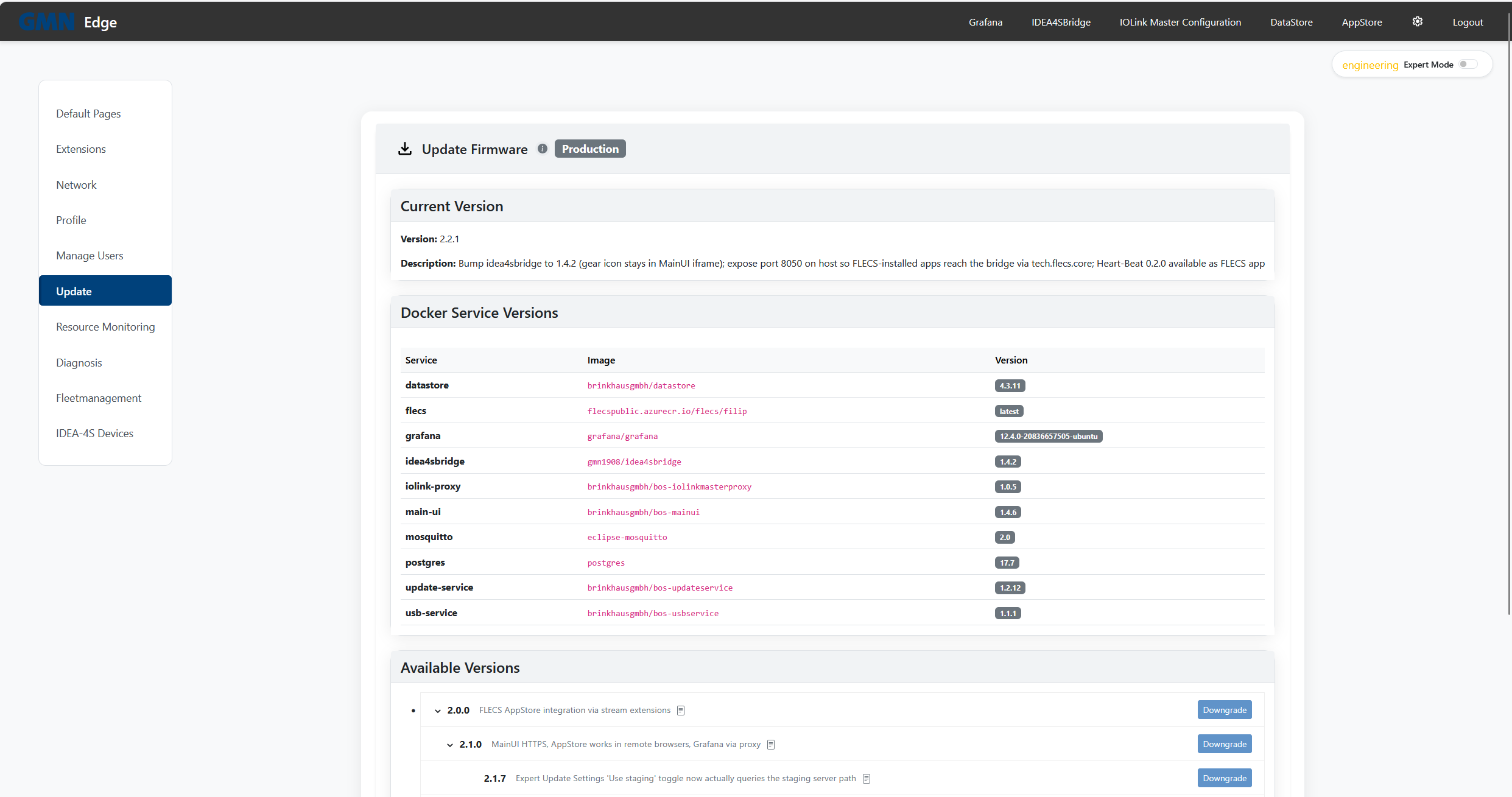
Pick Update in the left sidebar.
-
You see the currently installed version on top, the versions of all running Docker services in the middle, and the available-versions list from the Brinkhaus Update Server at the bottom.
-
Find the target version (typically the latest). By default the list only shows versions of the same major version as the installed firmware (a 2.x edge only sees 2.x versions). The “Show all versions” toggle in the header of the version list also reveals other major versions — however, jumps across a major-version boundary require an explicit bridge version and should only be done after consulting Brinkhaus.
-
The Release Notes button shows the changes of all versions of the stream; notes for versions newer than the installed firmware are visually set apart.
-
Click Upgrade (or Downgrade for older versions).
-
The edge downloads the signed compose file from the update server, verifies the Ed25519 signature, stages the files for the UpdateService, and starts the update process automatically.
-
During the update a progress screen shows the current phase (validation, signature check, stopping services, pulling images, …). The UI is briefly unreachable during this. After a successful health check (typically 1–2 minutes) you are logged back in; on failure the edge automatically rolls back to the previous version — the outcome of the rollback (succeeded / failed) is also shown on the progress screen.
Without an internet connection (USB)
If no connection to the update server is available, a firmware version can also be installed from a USB stick — with the same signature verification and the same rollback behavior.
Remotely (FleetManager)
Firmware updates can also be triggered centrally from the Brinkhaus FleetManager (“Install firmware version” command). The edge then downloads the selected version itself, signed, from the update server and installs it via the normal update mechanism including rollback protection.
Troubleshooting
- Update stuck on “downloading” → check the internet connection, reboot the edge if needed and retry.
- A service stays in “rollback” after the update → check Settings → Diagnosis for the offending service; codes are explained on Diagnosis codes.
- No versions are listed → enable “Expert Mode” top-right and check that the update-server URL is correct; usually
https://update.brinkhaus-gmbh.de.
Related
- How updates work — background on the 7-phase flow and the rollback logic
- Diagnosis codes — what every code in the Diagnosis panel means