How-to v2
You want to give additional people access to the openXEdge UI — typically a maintenance and a shop-floor operator account on top of the existing admin.
Prerequisites
- You are signed in as a user with the
settingspermission (the factoryadmin). - You have decided which areas the new user should be allowed to see.
See existing accounts
-
Top-right cog → Settings → Manage Users in the sidebar.
-
The accounts table appears with permission columns:
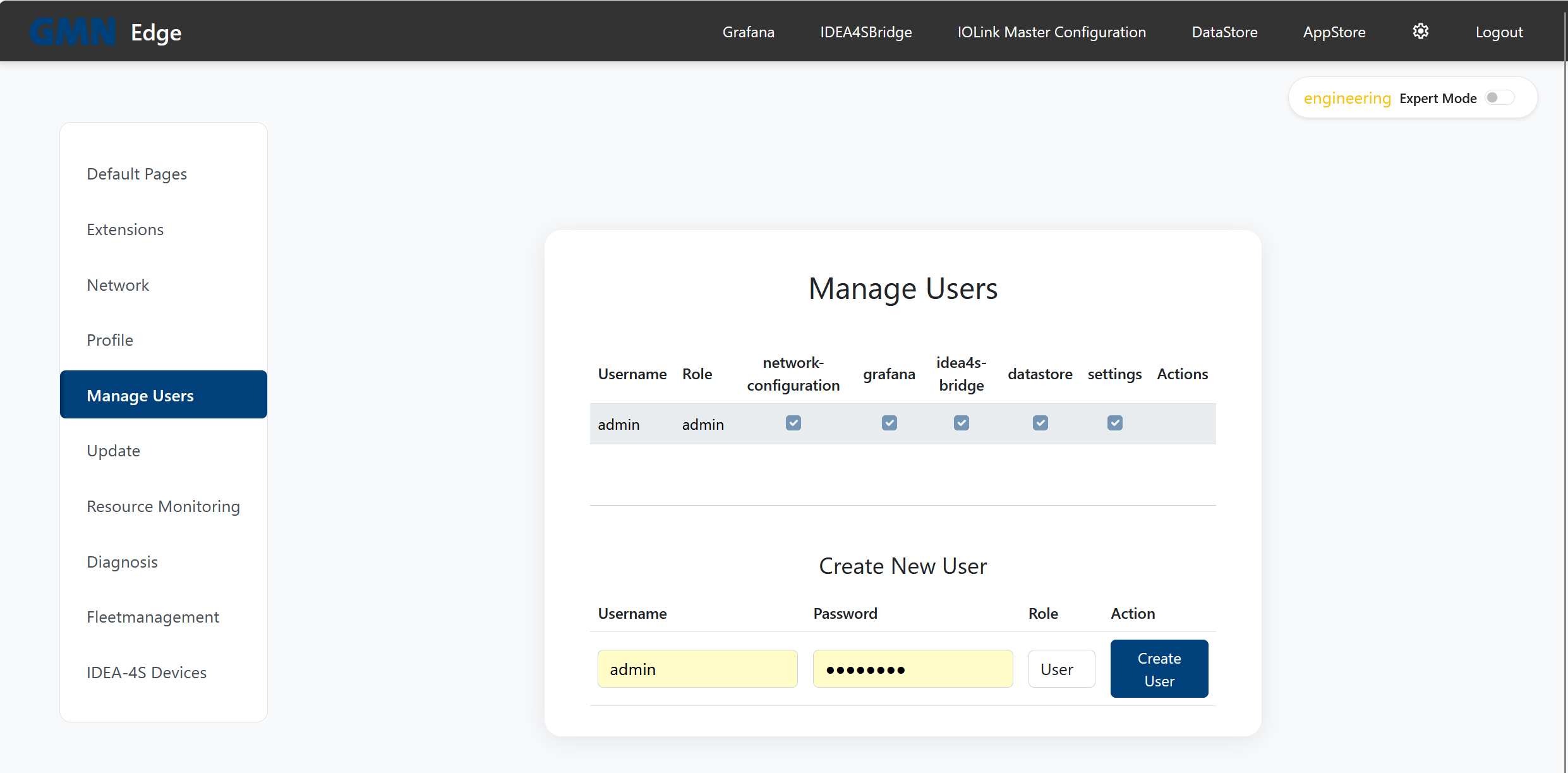
| Column | Meaning |
|---|---|
network-configuration | May change netplan (in Settings → Network) — the edge reboots on save. |
grafana | Sees the Grafana tile on the home page and can open the dashboard. |
idea4s-bridge | May view and modify the IDEA-4S sensor and its parameters. |
datastore | Sees the DataStore tile and reaches the internal-database UI. |
settings | Sees the entire settings area, including other accounts and Update. |
admin has every permission by definition.
Create a new user
In the Create New User block at the bottom:
- Username — free-form, unique.
- Password — set initial password.
- Role —
Userfor restricted accounts,adminfor full rights. - Click Create User.
The new row appears immediately. Tick the permission boxes so the person sees exactly the areas they need — e.g. a shop-floor account gets grafana and idea4s-bridge only, never settings.
Change permissions
Tick or untick the boxes directly in the table — the change takes effect on the user’s next page load.
Delete an account
Actions column → trash button. Note: the last remaining admin cannot be deleted — otherwise nobody could log in.
If you lock yourself out
- Another user with
settingspermission can reset the password in the Manage-Users table. - Failing that, Brinkhaus personnel can re-derive the initial password from the machine ID — see First boot walkthrough.