You want to inspect or maintain the IDEA-4S sensor on Port 1 of the IO-Link master — without IFM-specific tooling, directly from the openXEdge UI.
Prerequisites
- You are signed in as a user with the
idea4s-bridgepermission. - The IDEA-4S is physically wired (see Edge wiring) and appears in the device list.
Steps
-
Top-right cog → Settings → IDEA-4S Devices in the sidebar.
-
There is one entry per attached device (e.g. IDEA-4S 0). Pick the matching one.
-
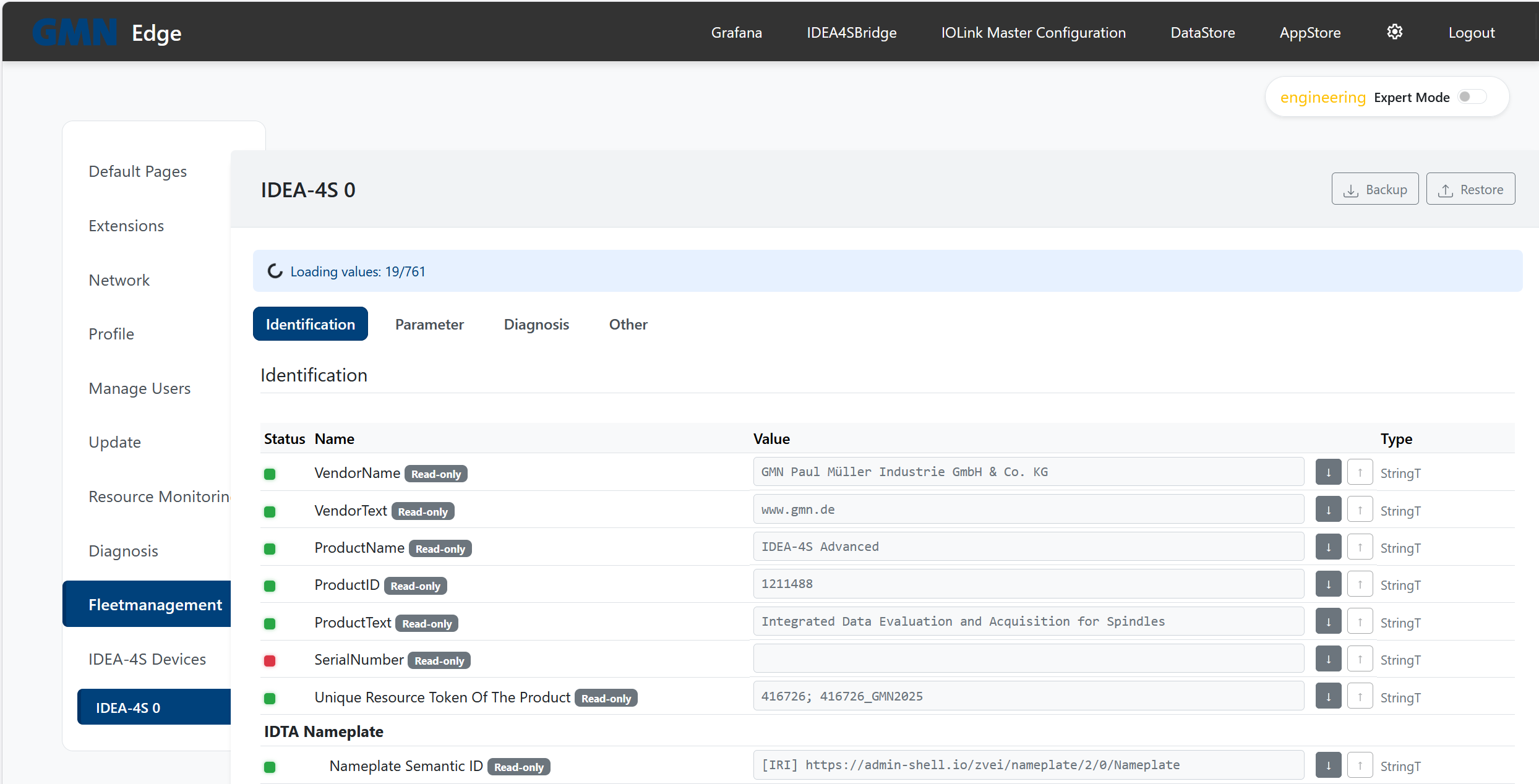
The value list loads all parameters in parallel (“Loading values: x/y”). Below that a four-tab carousel:
| Tab | Content | Editable? |
|---|---|---|
| Identification | Vendor, product name, serial number, IDTA Nameplate fields. | Read-only (sourced from the IODD). |
| Parameter | Measurement, threshold and configuration values — the main area for adjustments. | Yes, per field. |
| Diagnosis | Lifetime, error counters, temperature windows, technical properties. | Read-only. |
| Other | Reserved for future IODD extensions. | Empty on current firmware. |
Which fields can I change?
Not every input is active: fields tagged Read-only (grey badge next to the name) cannot be written — that’s a property of the sensor itself (its IODD declares them read-only). Editable fields show an active input and a save/write arrow on the right.
💡 If you’re unsure whether a change is safe, take a Backup (see below) before changing — you can restore at any time.
Backup and restore
Top-right of the IDEA-4S page two buttons:
- Backup — downloads a JSON file with all currently-read parameter values. Filename e.g.
idea4s_device_0_backup.json. - Restore — writes a previously-downloaded JSON file back to the device. The flow includes a persistence step; after a successful restore the values survive a power cycle of the sensor.
⚠ Restore overwrites every field in the backup with the value it carried at the time. Always reuse a backup taken from the same sensor type and firmware.
If a field is missing
The split into Identification / Parameter / Diagnosis is derived automatically from the sensor’s IODD. If a field is missing or in the “wrong” tab, the IODD description of the firmware is usually in a transition state — contact Brinkhaus support with the device type and FW level (visible on the Identification tab).